
This is a multi-part blog that details the steps that I took to migrate a vSphere VM that runs via iSCSI from a Synology NAS to Proxmox VE via iSCSI as well. As an avid homelabber and home automation enthusiast, I read many recommendations for this FLOSS hypervisor and was eager to see how I could augment my HomeAssistant installation with hypervisor management.
But there was quite a learning curve I wasn’t expecting: VMware vSphere has been all I’ve known about virtualization for the last 20 years, and while migrating to Proxmox VE, I quickly saw why vSphere’s simplicity and power has been underappreciated and undervalued by many for years.
My home lab has shrunk over the years and containers 1 host and 1 VM, a docker host, which runs the following containers:
Migration Task List
I identified the following tasks that I needed to complete with this project following the installation of Proxmox VE:
- Configure and Connect Synology NAS over iSCSI (this post)
- Migrate VM to local disk
- Modify VM config to run on Proxmox
- Replace VMFS filesystem on iSCSI LUN with LVM
- Migrate VM back to Synology iSCSI LUN
- Re-establish VM backup
Configure and Connect Synology NAS over iSCSI
Connecting the iSCSI LUN from Synology to Proxmox was relatively straightforward. While Proxmox VE can automatically import VMs from ESXi, I only have one host so I had to approach the migration differently.
On the Datacenter tab, select Storage, then from the Add drop-down menu, choose iSCSI

I gave the iSCSI connect an ID of ‘Synology’ and provided the IP address of the Synology NAS, and it automatically discovered the target.
To allow the host to access the LUN, I needed to allow that access to the Synology NAS. For that step, I needed the iSCSI initiator name from Proxmox VE. I found that by running: cat /etc/iscsi/initiatorname.iscsi
DO NOT EDIT OR REMOVE THIS FILE!
If you remove this file, the iSCSI daemon will not start.
If you change the InitiatorName, existing access control list
may reject this initiator. The InitiatorName must be unique
for each iSCSI initiator. Do NOT duplicate iSCSI InitiatorNames.
InitiatorName=iqn.1993-08.org.debian:01:5d74b2ba12ed
In Synology Package Manager, I opened SAN Manager and added a new host and gave it Read/Write permissions to the LUN:
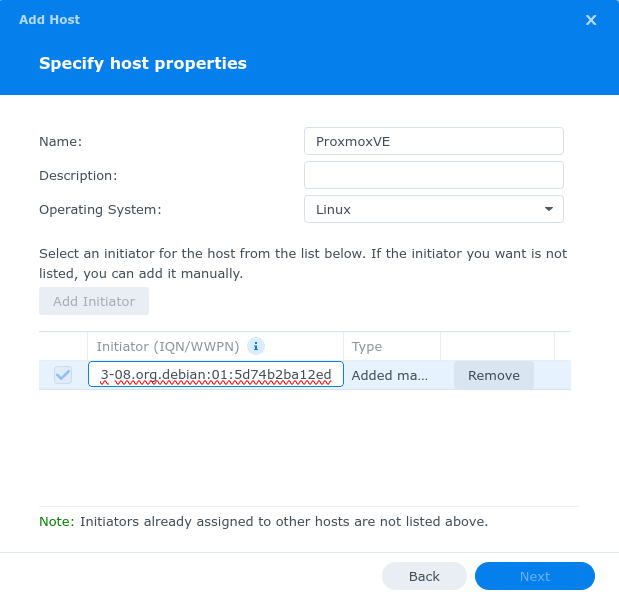
With the Synology iSCSI LUN connected to Proxmox VE, it was time to mount the VMFS filesystem to migrate the VM. To have a mountpoint on the host, I created the directory /mnt/vmfs. I also used fdisk -l to find the iSCSI LUN that I connected:
root@proxmox01:~# fdisk -l
...
Disk /dev/sdc1: 47 GiB, 50465865728 bytes, 98566144 sectors
Disk model: Storage
Units: sectors of 1 * 512 = 512 bytes
Sector size (logical/physical): 512 bytes / 512 bytes
I/O size (minimum/optimal): 512 bytes / 512 bytes
Then I installed vmfs6-tools and used the vmfs-fuse command:
vmfs6-fuse /dev/sdc1 /mnt/vmfs/From there, I could cd to /mnt/vmfs/docker (the name of my VM) and see the vmdk and move on to creating the VM in Proxmox VE before migrating the disk. We’ll finish over VM migration progress in the next post!
 Brandon Willmott